
Canva Video
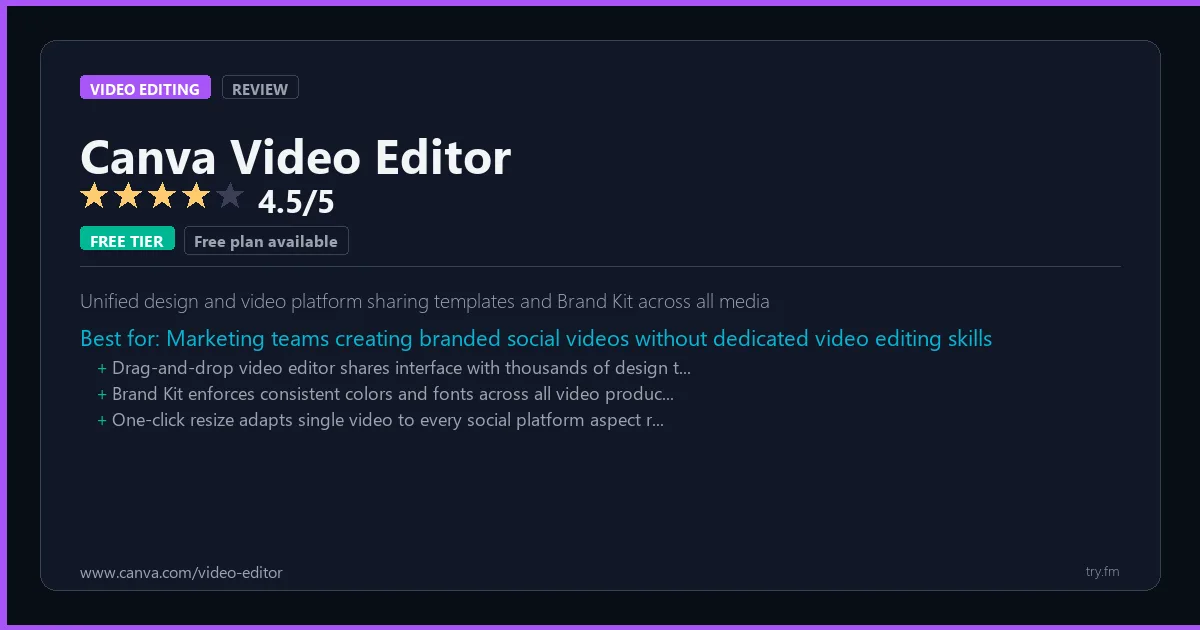
Free plan available. Canva Pro at $12.99/month (annual: $119.99/year).
 Photo by Abdulkadir Emiroğlu on Pexels
What is Canva Video Editor?
Canva Video Editor, part of the Canva platform at canva.com, brings the simplicity of Canva's drag-and-drop design interface to video creation. Canva offers thousands of animated templates for social media, presentations, and marketing videos. With built-in stock footage, music, and AI tools like Magic Animate and background remover, Canva Video makes it easy for non-editors to produce scroll-stopping content for Instagram, TikTok, YouTube, and beyond without any technical skill.
Visit https://www.canva.com/video-editor to learn more or start your free trial.

100 AI Side Hustles You Can Start This Weekend
While you're browsing tools, thousands of people are already making money with them. Get the full list with free tools for each.
We respect your privacy. Unsubscribe anytime.
Key Features
- Thousands of animated video templates
- One-click background remover
- AI Magic Animate for stills
- Built-in stock footage and music library
- Direct social media publishing
- Brand kit for consistent styling
Getting Started with Canva Video Editor
Here is how to start using Canva Video Editor today, step by step.
- Visit the website - Go to https://www.canva.com/video-editor and click the sign-up button.
- Create your account - You can sign up for the free tier without entering a credit card. This gives you access to the basic features right away.
- Explore the dashboard - Once you are in, take 5 minutes to look around. Most video editing tools have a tutorial or onboarding flow that shows you the basics.
- Try the core feature - Start with: Thousands of animated video templates. This is what most people use Canva Video Editor for. Spend 10 minutes trying it out to get a feel for how it works.
- Check the limits - If you are on a free tier, check what limits apply so you know when it makes sense to upgrade.
Pro Tips for Canva Video Editor
- Start with the free tier - The free tier is usually enough for personal use and small projects. Only upgrade when you hit a specific limit that blocks your work.
- Use keyboard shortcuts - Most video editing tools have keyboard shortcuts that speed up your workflow. Look for them in the settings or help menu.
- Check for integrations - Canva Video Editor probably connects with tools you already use. Check the integrations page to set up time-saving automations.
- Watch tutorials - Search "Canva Video Editor tutorial" on YouTube for walkthroughs from other users. Seeing how real people use the tool is the fastest way to learn.
- Compare before committing - Before you pay for a subscription, try 2-3 similar tools. Our video editing tools page makes it easy to compare features.
Frequently Asked Questions About Canva Video Editor
Do I need a powerful computer for Canva Video Editor?
It depends on what you are editing. For short social media clips, most modern computers handle Canva Video Editor fine. For 4K video or heavy effects, you will want at least 16GB of RAM and a dedicated graphics card. Cloud-based editors avoid this issue entirely.
Can Canva Video Editor export in 4K?
Check the pricing page - some tools limit export quality on free plans. Most paid plans support 4K export. Our quick facts section above shows what Canva Video Editor offers on each tier.
Is Canva Video Editor good for beginners?
That depends on the tool. Check the description above for details on how easy Canva Video Editor is to learn. Generally, tools with higher ratings tend to have better onboarding for new users.
The $0 AI Toolkit: 61 Tools That Are 100% Free Forever
Stop paying for tools with free tiers that actually work. Not trials. Not freemium traps. Actually free.
We respect your privacy. Unsubscribe anytime.
Similar Tools

Adobe Premiere
Most widely used professional NLE with deepest ecosystem of plugins and studio support
Try Free Read Review
Inshot
Fastest mobile editing workflow for quick social clips with licensed music library
Try Free Read Review
Vegas Pro
Perpetual license Windows NLE with event-based timeline unique to the Vegas ecosystem
Try Free Read Review