
Canva Social
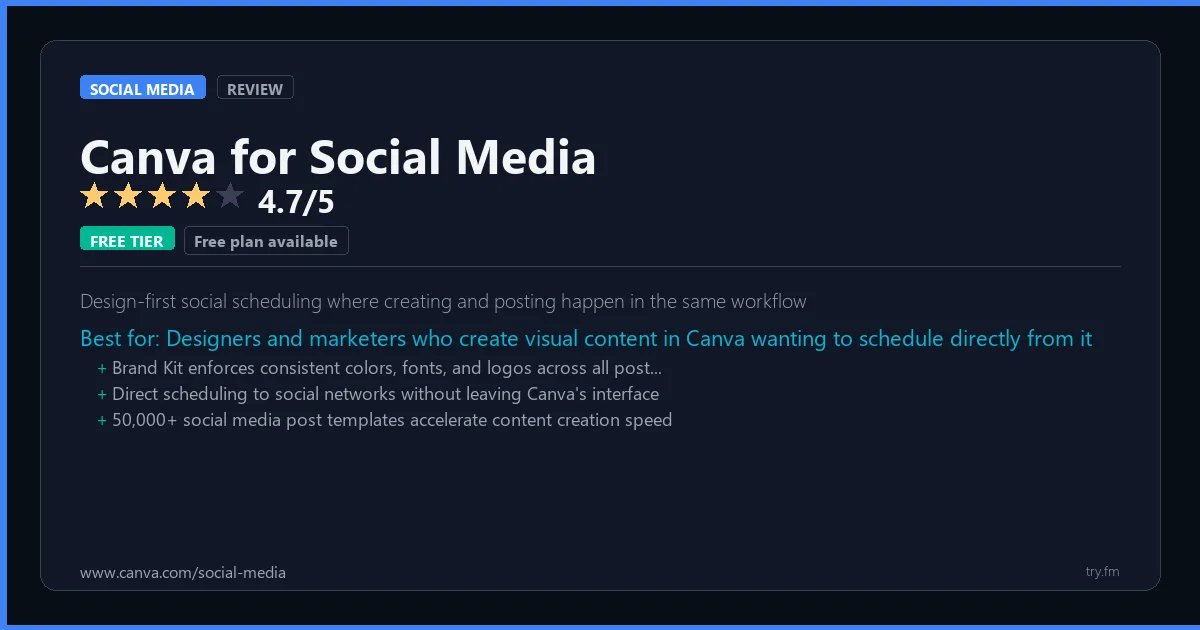
Free plan available. Canva Pro at $12.99/month or $119.99/year.
 Photo by Walls.io on Pexels
What is Canva for Social Media?
Canva for Social Media, part of the Canva design platform at canva.com, provides thousands of professionally designed templates for Instagram posts, Stories, Facebook covers, Twitter banners, LinkedIn graphics, and every other social media format. Canva's drag-and-drop editor, brand kit, AI image generator, and one-click resize tool make it the most widely used design tool for social media content worldwide. With scheduling and direct publishing to major networks built in, Canva serves as a complete content creation and distribution hub.
Visit https://www.canva.com/social-media to learn more or start your free trial.

100 AI Side Hustles You Can Start This Weekend
While you're browsing tools, thousands of people are already making money with them. Get the full list with free tools for each.
We respect your privacy. Unsubscribe anytime.
Key Features
- Thousands of social media post templates
- AI Magic Studio image and text generation
- One-click resize to any platform format
- Brand kit for consistent styling
- Built-in social media scheduling
- Background remover and content enhancement tools
Getting Started with Canva for Social Media
Here is how to start using Canva for Social Media today, step by step.
- Visit the website - Go to https://www.canva.com/social-media and click the sign-up button.
- Create your account - You can sign up for the free tier without entering a credit card. This gives you access to the basic features right away.
- Explore the dashboard - Once you are in, take 5 minutes to look around. Most social media tools have a tutorial or onboarding flow that shows you the basics.
- Try the core feature - Start with: Thousands of social media post templates. This is what most people use Canva for Social Media for. Spend 10 minutes trying it out to get a feel for how it works.
- Check the limits - If you are on a free tier, check what limits apply so you know when it makes sense to upgrade.
Pro Tips for Canva for Social Media
- Start with the free tier - The free tier is usually enough for personal use and small projects. Only upgrade when you hit a specific limit that blocks your work.
- Use keyboard shortcuts - Most social media tools have keyboard shortcuts that speed up your workflow. Look for them in the settings or help menu.
- Check for integrations - Canva for Social Media probably connects with tools you already use. Check the integrations page to set up time-saving automations.
- Watch tutorials - Search "Canva for Social Media tutorial" on YouTube for walkthroughs from other users. Seeing how real people use the tool is the fastest way to learn.
- Compare before committing - Before you pay for a subscription, try 2-3 similar tools. Our social media tools page makes it easy to compare features.
Frequently Asked Questions About Canva for Social Media
How many social accounts can I manage with Canva for Social Media?
The number of accounts depends on your plan. Free tiers typically support 1-3 accounts, while paid plans handle 10 or more. Check the pricing details above for Canva for Social Media's specific limits.
Does Canva for Social Media support TikTok?
TikTok support varies by tool. Many social media management platforms have added TikTok scheduling and analytics in the past year. Check Canva for Social Media's feature list or website for current platform support.
Can Canva for Social Media help me grow my followers?
Social media tools help you post consistently and at the right times, which does help with growth. But no tool can guarantee follower growth - that comes from creating good content that your audience cares about.

How 50 Regular People Made Their First $1,000 with AI
A nurse. A teacher. A retiree. None of them were "tech people." See exactly how they did it, step by step.
We respect your privacy. Unsubscribe anytime.
Similar Tools

Emplifi
Connects social media management to e-commerce and customer care in one unified platform
Try Free Read Review
Phantombuster
Largest library of pre-built social automation scripts covering 200+ specific growth tasks
Try Free Read Review
Publer
Broadest network coverage including Google Business Profile with AI caption writing
Try Free Read Review