
Savvycal
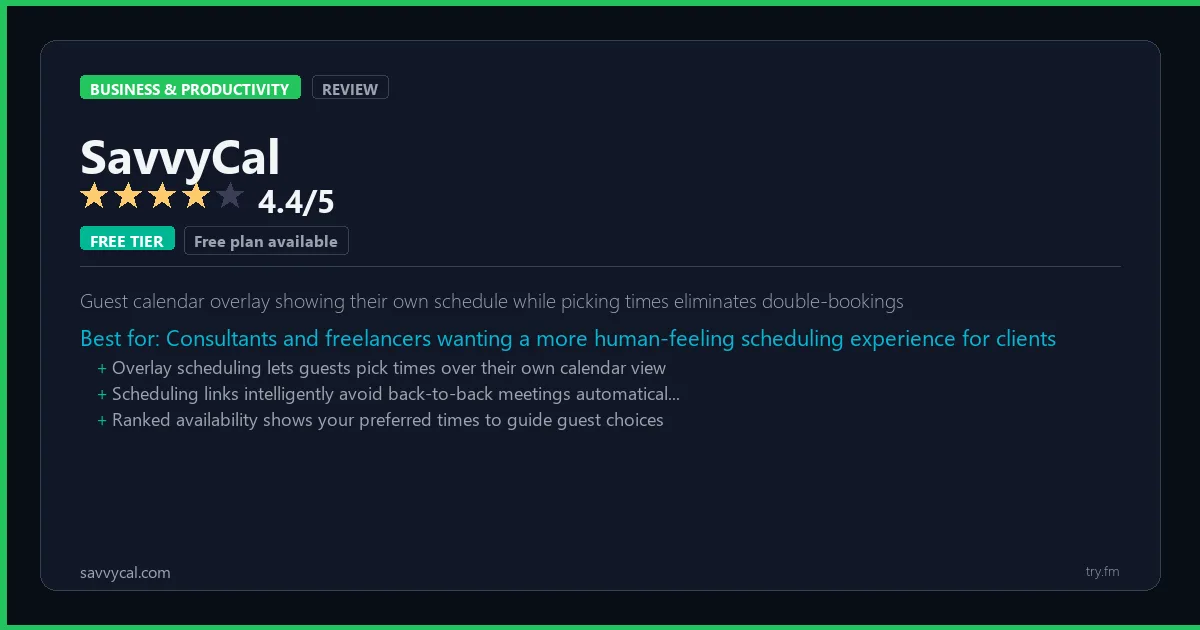
Free plan available. Basic at $12/month. Premium at $20/month (annual).
 Photo by Pavel Danilyuk on Pexels
What is SavvyCal?
SavvyCal, available at savvycal.com, is a scheduling platform designed to provide a better experience for both the host and the invitee compared to traditional scheduling tools. SavvyCal's overlay scheduling lets invitees drag their own calendar over available slots, making it immediately clear which times work best. With ranked availability slots, link overlaying, Notion embed support, and Slack integration, SavvyCal is a thoughtful Calendly alternative for professionals who care about the scheduling experience they offer.
Visit https://savvycal.com to learn more or start your free trial.

The $0 AI Toolkit: 61 Tools That Are 100% Free Forever
Stop paying for tools with free tiers that actually work. Not trials. Not freemium traps. Actually free.
We respect your privacy. Unsubscribe anytime.
Key Features
- Calendar overlay for intuitive slot selection
- Ranked availability for priority time blocks
- Embed in Notion and personal websites
- Slack and Google Meet integration
- Meeting polls for group scheduling
- Detailed scheduling analytics
Getting Started with SavvyCal
Here is how to start using SavvyCal today, step by step.
- Visit the website - Go to https://savvycal.com and click the sign-up button.
- Create your account - You can sign up for the free tier without entering a credit card. This gives you access to the basic features right away.
- Explore the dashboard - Once you are in, take 5 minutes to look around. Most business tools have a tutorial or onboarding flow that shows you the basics.
- Try the core feature - Start with: Calendar overlay for intuitive slot selection. This is what most people use SavvyCal for. Spend 10 minutes trying it out to get a feel for how it works.
- Check the limits - If you are on a free tier, check what limits apply so you know when it makes sense to upgrade.
Pro Tips for SavvyCal
- Start with the free tier - The free tier is usually enough for personal use and small projects. Only upgrade when you hit a specific limit that blocks your work.
- Use keyboard shortcuts - Most business tools have keyboard shortcuts that speed up your workflow. Look for them in the settings or help menu.
- Check for integrations - SavvyCal probably connects with tools you already use. Check the integrations page to set up time-saving automations.
- Watch tutorials - Search "SavvyCal tutorial" on YouTube for walkthroughs from other users. Seeing how real people use the tool is the fastest way to learn.
- Compare before committing - Before you pay for a subscription, try 2-3 similar tools. Our business tools page makes it easy to compare features.
Frequently Asked Questions About SavvyCal
Is SavvyCal good for small teams?
SavvyCal works for teams of all sizes. Many business tools offer free plans for small teams (usually up to 5-10 users), then charge per user as you grow. Check the pricing section above for SavvyCal's team plans.
Does SavvyCal integrate with other tools?
Most business productivity tools connect with popular apps like Slack, Google Workspace, and Microsoft 365. Many also work with Zapier or Make for custom automations. Check SavvyCal's integrations page for the full list.
Can I switch from my current tool to SavvyCal?
Most business tools offer data import features or migration guides. Before switching, export your data from your current tool and check that SavvyCal can import it. Try the free tier first to make sure it fits your workflow before moving your whole team.

How 50 Regular People Made Their First $1,000 with AI
A nurse. A teacher. A retiree. None of them were "tech people." See exactly how they did it, step by step.
We respect your privacy. Unsubscribe anytime.
Similar Tools

Any Do
Daily AI planner feature that prioritizes and briefs you on today's tasks each morning
Try Free Read Review
Intercom
Unified platform combining customer support, proactive messaging, and in-app product tours
Try Free Read Review
Readme Io
Personalized API docs inserting each developer's own credentials into code sample examples
Try Free Read Review